Mic Test: Uji Mic Online Percuma
What Is a Mic Test?
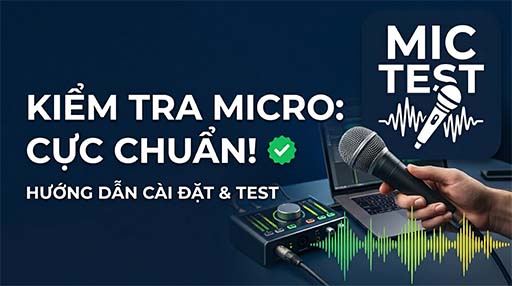
A mic test (microphone test) is a quick check to confirm your microphone is capturing audio correctly. Whether you are joining a video call, recording a podcast, streaming live, or gaming online, running an online mic test before you start can save you from embarrassing silent moments.
Mictest.vn is a free, browser-based tool that lets you test your microphone in seconds — no download, no registration, no plugins required.
How to Test Your Microphone Online
- Open the page — The browser will automatically request microphone permission.
- Allow access — Click "Allow" when the browser asks for permission.
- Speak — Talk into your mic and watch the live audio waveform animate.
- Check volume — The volume bar shows your mic's input level in real time.
- Record — Hit "Start Recording," speak, then "Stop Recording" to hear playback.
- Download — Save your recording as a .mp3 file with one click.
If the waveform moves and the volume bar rises when you speak, your microphone is working.
Why Should You Test Your Microphone?
- Before a job interview or meeting — Avoid silence at the worst moment.
- Before streaming or recording — Catch gain, noise, or echo issues early.
- After system updates — Drivers can reset mic permissions without warning.
- When switching devices — Headsets, USB mics, and built-in mics behave differently.
- Troubleshooting — Quickly identify whether the problem is hardware or software.
Mic Test Features
| Feature | Details |
|---|---|
| Live waveform | Real-time animated frequency bars |
| Volume meter | Shows input level as a percentage |
| Recording | Record unlimited clips directly in the browser |
| MP3 download | Export recordings as high-quality MP3 files |
| No install | Works in Chrome, Firefox, Edge, Safari |
| Privacy | Audio never leaves your device — processed locally |
How to Fix a Microphone That Is Not Working
1. Check Browser Permissions
Most mic issues are permission-related. Click the lock icon in your browser's address bar and make sure microphone is set to Allow.
2. Select the Correct Input Device
If you have multiple microphones (headset, webcam, built-in), your OS may default to the wrong one. Go to System Settings → Sound → Input and select the correct device.
3. Check Physical Connections
- USB mics: try a different port.
- 3.5 mm jacks: make sure it is plugged into the pink microphone port, not headphone.
- Bluetooth headsets: confirm pairing and that the mic profile is active.
4. Update or Reinstall Audio Drivers
Outdated drivers are a common cause of mic failures on Windows. Visit your device manufacturer's website or use Device Manager to update audio drivers.
5. Disable Exclusive Mode (Windows)
Right-click the speaker icon → Sound Settings → Recording tab → Properties → Advanced → uncheck "Allow applications to take exclusive control."
6. Grant App Permissions (Windows 11 / macOS)
- Windows: Settings → Privacy & Security → Microphone → toggle on.
- macOS: System Preferences → Security & Privacy → Microphone → allow your browser.
Mic Test vs. Other Microphone Tests
Unlike apps that only show a simple indicator, mictest.vn offers:
- A frequency spectrum visualizer — see which frequencies your mic captures.
- In-browser recording — no third-party service receives your audio.
- MP3 export — test, record, and keep the file.
- Multi-language support — available in 46 languages.
Frequently Asked Questions
Does the mic test send my audio to a server?
No. All audio processing happens locally in your browser using the Web Audio API. Nothing is uploaded.
Which browsers support the online mic test?
Chrome, Firefox, Edge, Opera, and Safari (iOS 14.3+). Internet Explorer is not supported.
Does the mic test work on mobile?
Yes. Open the page in Chrome or Safari on Android or iOS. The page must be served over HTTPS for microphone access to work on mobile.
Why does my microphone show as working but people cannot hear me?
The mic is receiving audio, but the problem is likely in the app you are using. Check that the correct input device is selected in that app's audio settings.
Can I test my microphone without a camera?
Yes. Mic Test only requests microphone permission — no camera access required.
Is the mic test free?
100% free, forever. No subscriptions, no ads that block functionality.